M1 Quantum Assistant MT5 Expert Advisor: Complete Setup Guide & Money Management
The M1 Quantum Assistant is a professional Expert Advisor (EA) for MetaTrader 5 designed to automate forex trading with intelligent money management, real-time account monitoring, and flexible trading modes. Whether you're using it with the M1 Quantum MT5 Indicator for automated signal execution or as a standalone manual trading panel, this complete guide covers installation, features, money management strategies, and best practices for both beginner and advanced traders.
Download M1 Quantum Assistant: MT5 Version V1.3 | MT5 Version V1.2
What is M1 Quantum Assistant MT5 EA?
M1 Quantum Assistant is a professional Expert Advisor for MetaTrader 5 designed to work seamlessly with the M1 Quantum MT5 Indicator, or operate as a fully independent trading assistant. It combines automated signal execution with manual trading control, making it suitable for both hands-off algorithmic trading and active day traders.
Choose your trading style:
- Fully automated signal execution with AUTO Mode
- Manual confirmation before every trade with MANUAL Mode
- Instant one-click trading for manual entries without predefined targets
M1 Quantum Assistant provides a powerful trading panel with live account information, position management tools, and an intelligent Quantum Money Management system based on consecutive winning trades—a proven alternative to traditional Martingale systems that increases risk only after wins, not losses.
Key Features of M1 Quantum Assistant EA
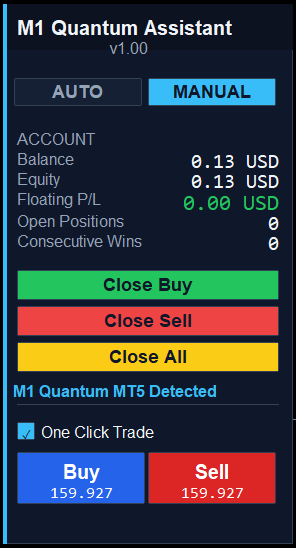
- Live trading dashboard with Balance, Equity, and Floating Profit/Loss
- AUTO Mode for fully automated signal execution from MT5 indicators
- MANUAL Mode with trade confirmation dialog before each entry
- One-Click Buy and Sell buttons with live market prices for manual traders
- Close Buy, Close Sell, and Close All position management functions
- Automatic M1 Quantum Indicator detection and integration
- Fixed Lot and Quantum Money Management modes for flexible risk control
- Consecutive Wins tracking for progressive lot sizing during winning streaks
- Built-in pre-trade safety checks and validation to prevent invalid orders
How to Setup M1 Quantum Assistant with MT5 Indicator
Installation Steps for Automated Trading
- Attach the M1 Quantum MT5 Indicator to your chart.
- Attach M1 Quantum Assistant EA to the same chart.
- Enable Algo Trading in MetaTrader 5 (Tools → Options → Expert Advisors).
- When the indicator is detected, the panel footer displays: "M1 Quantum MT5 Detected"
How Signal Trading Works with M1 Quantum Assistant
The EA monitors chart objects created by the M1 Quantum Indicator in real-time:
- Buy/Sell Arrows (
M1Quantum_Sig_Arr_*) - Take Profit Lines (
M1Quantum_Sig_TpLn_*) - Stop Loss Lines (
M1Quantum_Sig_SlLn_*)
AUTO Mode vs MANUAL Mode: Which Should You Use?
AUTO Mode (Fully Automated Trading)
Recommended for traders who want hands-off execution and passive algorithmic trading.
- Trades open automatically at market price when signals appear
- Stop Loss and Take Profit are applied automatically from indicator levels
- No user interaction required—perfect for overnight or multi-timeframe trading
- Safety checks remain active to prevent invalid trades
MANUAL Mode (Trader Control & Discretion)
Recommended for traders who want full discretion and market awareness.
- A confirmation dialog appears when a new signal is generated
- Trade details are shown before execution for your review
- You can approve or reject each trade based on current market conditions
- Ability to skip unwanted trades during news events or low liquidity
You can switch between modes at any time from the panel without restarting the EA, giving you flexibility to adapt to changing market conditions.
Using M1 Quantum Assistant as Standalone Manual Trading Panel
M1 Quantum Assistant works independently without the M1 Quantum Indicator, making it a versatile manual trading tool for any MT5 strategy.
How to Use as Manual Trading Panel
- Attach M1 Quantum Assistant to any chart (no indicator required).
- Enable One Click Trade from the panel settings.
- Use the Buy and Sell buttons for instant market entries at current Ask/Bid prices.
Benefits of Standalone Mode
- Compact, lightweight trading panel optimized for manual traders
- Fast manual order execution with one click—ideal for scalping and day trading
- Live account monitoring (Balance, Equity, P/L) on every chart
- Position management tools (Close Buy, Close Sell, Close All)
- Consecutive Wins money management system for progressive lot sizing
Money Management: Fixed Lot vs Quantum Mode Explained
M1 Quantum Assistant offers two lot-sizing methods to match your risk tolerance, account size, and trading style. Choosing the right money management approach is critical for long-term profitability.
Fixed Lot Mode: Simple & Predictable
Every trade uses the same lot size regardless of winning or losing streaks.
Advantages:
- Simple and predictable risk per trade
- Easy to calculate maximum drawdown and account recovery time
- Ideal for beginners, conservative traders, and prop firm accounts with strict rules
- Consistent position sizing across all market conditions
When Fixed Lot is selected, Consecutive Wins and Increment Factor settings are ignored.
Quantum Mode: Growth During Winning Streaks (Recommended)
Quantum Mode increases lot size only after winning trades—the opposite of traditional Martingale systems, making it significantly safer for account preservation.
How Quantum Mode Works Step-by-Step
- Start with the Base Lot on your first trade.
- Increase lot size after every consecutive winning trade.
- Reset to Base Lot after reaching your target number of consecutive wins.
- Reset to Base Lot immediately after any losing trade.
This approach allows controlled growth during profitable periods while maintaining strict risk discipline during drawdowns.
Consecutive Wins Money Management: How Quantum Mode Works
Traditional Martingale systems increase lot size after losses, creating significant risk during losing streaks. Quantum Mode follows the opposite principle, making it ideal for long-term account growth:
| Event | Action |
|---|---|
| First Trade | Use Base Lot |
| Winning Trade | Increase Lot Size |
| Consecutive Wins Target Reached | Reset to Base Lot |
| Losing Trade | Reset to Base Lot |
Quantum Mode Settings Explained
| Setting | Description | Example |
|---|---|---|
| Base Lot | Initial trade size for all new cycles | 0.10 lots |
| Consecutive Wins | Number of wins required to complete a cycle | 3 wins |
| Lot Increment Factor | Multiplier applied after each win | 2.0 = double lot size |
Quantum Mode Example: Winning Cycle
Settings: Base Lot 0.10 | Consecutive Wins Target 3 | Increment Factor 2.0
| Trade # | Result | Lot Size | Approx. Profit (10 pips) |
|---|---|---|---|
| Trade 1 | Win | 0.10 | +$7 |
| Trade 2 | Win | 0.20 | +$14 |
| Trade 3 | Win | 0.40 | +$28 |
| Cycle Complete | Reset | 0.10 | Total ≈ $49 |
Quantum Mode Example: Loss Scenario (Risk Protection)
| Trade # | Result | Lot Size | Risk Management Note |
|---|---|---|---|
| Trade 1 | Win | 0.10 | Lot increases to 0.20 |
| Trade 2 | Loss | 0.20 | Immediate reset triggered |
| Trade 3 | — | 0.10 | Back to Base Lot (safest size) |
A loss immediately returns the system to the safest lot size, protecting your account during unfavorable market conditions and preventing catastrophic drawdowns.
Why Trade Sequence Matters More Than Win Rate
Many traders focus only on win percentage. However, the sequence of wins and losses significantly impacts performance with Quantum Mode, making consecutive wins more valuable than overall win rate.
Example: Three Traders, Same 60% Win Rate
| Trader | Trade Sequence | Quantum Mode Result |
|---|---|---|
| Trader A | W → W → W → L → L | Completes full winning cycle, benefits from lot progression |
| Trader B | L → L → W → W → W | Also completes full winning cycle, benefits from lot progression |
| Trader C | W → L → W → L → W | Never reaches consecutive wins target, frequently resets to Base Lot |
One-Click Trading: Manual Entry Panel for Scalpers
The One-Click Trade section is located at the bottom of the M1 Quantum Assistant panel, providing instant market entry for manual traders and scalpers.
How to Use One-Click Trading
- Enable the One Click Trade option from the panel settings.
- Click the Buy button to enter at the current Ask price.
- Click the Sell button to enter at the current Bid price.
- Trades are opened instantly at market price with your configured lot size.
Important Notes on One-Click Orders
- Orders are opened without Stop Loss or Take Profit — you must manage these manually or add them after entry.
- Lot size follows your selected money management settings (Fixed Lot or Quantum Mode).
- When disabled, the Buy and Sell buttons become inactive for safety.
- Ideal for scalpers and manual traders who want fast execution without predefined targets.
Account Information Panel: Real-Time Monitoring
The dashboard displays real-time account metrics for constant monitoring:
| Metric | Description |
|---|---|
| Balance | Your current account balance (deposits minus withdrawals) |
| Equity | Live account equity (Balance + floating P/L on open positions) |
| Floating P/L | Current open profit or loss on active positions |
Best Practices for M1 Quantum Assistant MT5 EA
- Start with Fixed Lot Mode: Test your strategy with fixed lot sizing before enabling Quantum Mode to understand baseline performance.
- Use MANUAL Mode initially: Review each trade signal before execution to build confidence in the EA's logic.
- Monitor consecutive wins: Track your win streaks to optimize Consecutive Wins Target and Increment Factor settings.
- Backtest before live trading: Use MT5's Strategy Tester to validate your indicator + EA combination on historical data.
- Set realistic Base Lot sizes: Ensure your Base Lot represents 1-2% risk per trade to maintain account safety.
- Review account metrics daily: Monitor Balance, Equity, and Floating P/L to catch issues early.
Troubleshooting M1 Quantum Assistant
Ready to automate your MT5 trading? Download M1 Quantum Assistant today and combine it with the M1 Quantum Indicator for a complete automated trading system. For custom EA development or strategy optimization, explore our Hire AI MQL5 Developer service.
