
M1 Quantum Assistant MT5 Expert Advisor: Complete User Guide
The M1 Quantum Assistant is a professional Expert Advisor (EA) for MetaTrader 5 designed to automate trading with intelligent money management and real-time account monitoring. Whether you're using it with the M1 Quantum MT5 Indicator for automated signal execution or as a standalone manual trading panel, this guide covers setup, features, and best practices.
Download: MT5 Version V1.3 | MT5 Version V1.2
What is M1 Quantum Assistant?
M1 Quantum Assistant is a professional Expert Advisor (EA) for MetaTrader 5 designed to work seamlessly with the M1 Quantum MT5 Indicator. It can also operate as a fully independent trading assistant.
Choose your trading style:
- Fully automated signal execution with AUTO Mode
- Manual confirmation before every trade with MANUAL Mode
- Instant one-click trading for manual entries
M1 Quantum Assistant provides a powerful trading panel with live account information, position management tools, and an intelligent money management system based on consecutive winning trades—a proven alternative to traditional Martingale systems.
Key Features of M1 Quantum Assistant
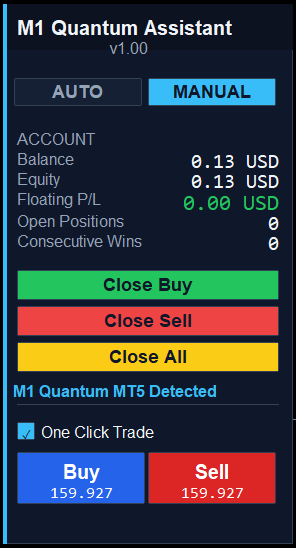
Setup: Using M1 Quantum Assistant with MT5 Indicator
Installation Steps
- Attach the M1 Quantum MT5 Indicator to your chart.
- Attach M1 Quantum Assistant EA to the same chart.
- Enable Algo Trading in MetaTrader 5 (Tools → Options → Expert Advisors).
- When the indicator is detected, the panel footer displays: "M1 Quantum MT5 Detected"
How Signal Trading Works
The EA monitors chart objects created by the M1 Quantum Indicator:
- Buy/Sell Arrows (
M1Quantum_Sig_Arr_*) - Take Profit Lines (
M1Quantum_Sig_TpLn_*) - Stop Loss Lines (
M1Quantum_Sig_SlLn_*)
Important: Only signals generated after the EA is attached are processed. Existing historical signals are ignored.
AUTO Mode vs MANUAL Mode
AUTO Mode (Fully Automated)
Recommended for traders who want hands-off execution.
- Trades open automatically at market price when signals appear
- Stop Loss and Take Profit are applied automatically from indicator levels
- No user interaction required
- Safety checks remain active to prevent invalid trades
MANUAL Mode (Trader Control)
Recommended for traders who want full discretion.
- A confirmation dialog appears when a new signal is generated
- Trade details are shown before execution
- You can approve or reject each trade
- Ability to skip unwanted trades based on market conditions
You can switch between modes at any time from the panel without restarting the EA.
Standalone Trading Assistant (Without Indicator)
M1 Quantum Assistant works independently without the M1 Quantum Indicator.
How to Use as Manual Trading Panel
- Attach M1 Quantum Assistant to any chart.
- Enable One Click Trade from the panel settings.
- Use the Buy and Sell buttons for instant market entries at current prices.
Benefits of Standalone Mode
- Compact, lightweight trading panel
- Fast manual order execution with one click
- Live account monitoring (Balance, Equity, P/L)
- Position management tools (Close Buy, Close Sell, Close All)
- Consecutive Wins money management system for progressive lot sizing
When the indicator is not installed, the panel displays: "Requires M1 Quantum MT5 Indicator" — this is informational only and does not affect manual trading functionality.
Money Management: Fixed Lot vs Quantum Mode
M1 Quantum Assistant offers two lot-sizing methods to match your risk tolerance and trading style.
Fixed Lot Mode
Every trade uses the same lot size regardless of winning or losing streaks.
Advantages:
- Simple and predictable risk per trade
- Easy to calculate maximum drawdown
- Ideal for beginners and conservative traders
When Fixed Lot is selected, Consecutive Wins and Increment Factor settings are ignored.
Quantum Mode (Recommended for Growth)
Quantum Mode increases lot size only after winning trades—the opposite of traditional Martingale systems.
Key Difference from Martingale: Martingale increases risk after losses (dangerous). Quantum Mode increases lot size after wins (safer), allowing you to capitalize on profitable streaks while protecting your account during losing periods.
How Quantum Mode Works
- Start with the Base Lot on your first trade.
- Increase lot size after every consecutive winning trade.
- Reset to Base Lot after reaching your target number of consecutive wins.
- Reset to Base Lot immediately after any losing trade.
This approach allows controlled growth during profitable periods while maintaining risk discipline.
Consecutive Wins Money Management: How It Works
Traditional Martingale systems increase lot size after losses, creating significant risk during losing streaks. Quantum Mode follows the opposite principle:
| Event | Action |
|---|---|
| First Trade | Use Base Lot |
| Winning Trade | Increase Lot Size |
| Consecutive Wins Target Reached | Reset to Base Lot |
| Losing Trade | Reset to Base Lot |
Key Benefit: Larger positions are opened only when the market is already producing profits, reducing risk during unfavorable conditions.
Quantum Mode Settings
| Setting | Description |
|---|---|
| Base Lot | Initial trade size (e.g., 0.10 lots) |
| Consecutive Wins | Number of wins required to complete a cycle (e.g., 3) |
| Lot Increment Factor | Multiplier applied after each win (e.g., 2.0 = double) |
Quantum Mode Example: Winning Cycle
Settings: Base Lot 0.10 | Consecutive Wins Target 3 | Increment Factor 2.0
| Trade # | Result | Lot Size | Approx. Profit |
|---|---|---|---|
| Trade 1 | Win | 0.10 | +$7 |
| Trade 2 | Win | 0.20 | +$14 |
| Trade 3 | Win | 0.40 | +$28 |
| Cycle Complete | Reset | 0.10 | Total ≈ $49 |
Quantum Mode Example: Loss Scenario
| Trade # | Result | Lot Size | Note |
|---|---|---|---|
| Trade 1 | Win | 0.10 | Lot increases to 0.20 |
| Trade 2 | Loss | 0.20 | Immediate reset triggered |
| Trade 3 | — | 0.10 | Back to Base Lot (safest size) |
A loss immediately returns the system to the safest lot size, protecting your account during unfavorable market conditions.
Why Trade Sequence Matters More Than Win Rate
Many traders focus only on win percentage. However, the sequence of wins and losses significantly impacts performance with Quantum Mode.
Example: Three Traders, Same 60% Win Rate
| Trader | Trade Sequence | Quantum Mode Result |
|---|---|---|
| Trader A | W → W → W → L → L | Completes full winning cycle, benefits from lot progression |
| Trader B | L → L → W → W → W | Also completes full winning cycle, benefits from lot progression |
| Trader C | W → L → W → L → W | Never reaches consecutive wins target, frequently resets to Base Lot |
Insight: Traders A and B both achieve significant profits despite identical win rates to Trader C, because their wins are clustered. This is why tracking consecutive wins is often more valuable than simply tracking win percentage.
One-Click Trading: Manual Entry Panel
The One-Click Trade section is located at the bottom of the M1 Quantum Assistant panel.
How to Use One-Click Trading
- Enable the One Click Trade option from the panel.
- Click the Buy button to enter at the current Ask price.
- Click the Sell button to enter at the current Bid price.
- Trades are opened instantly at market price.
Important Notes on One-Click Orders
- Orders are opened without Stop Loss or Take Profit — you must manage these manually or add them after entry.
- Lot size follows your selected money management settings (Fixed Lot or Quantum Mode).
- When disabled, the Buy and Sell buttons become inactive.
- Ideal for scalpers and manual traders who want fast execution.
Account Information Panel
The dashboard displays real-time account metrics:
| Metric | Description |
|---|---|
| Balance | Your current account balance (deposits minus withdrawals) |
| Equity | Live account equity (Balance + floating P/L) |
| Floating P/L | Current open profit or loss on active positions |
| Open Positions | Number of active trades opened by the EA |
| Consecutive Wins | Current winning streak (resets on loss) |
Position Management Tools
Close Buy
Closes all BUY positions opened by the M1 Quantum Assistant EA.
Close Sell
Closes all SELL positions opened by the M1 Quantum Assistant EA.
Close All
Closes every EA position on the current symbol simultaneously.
Safety Feature: All close operations require confirmation before execution to prevent accidental position closure.
Trade Settings & Configuration
| Setting | Description |
|---|---|
| Magic Number | Unique identifier for EA trades (prevents conflicts with other EAs) |
| Slippage | Maximum acceptable slippage in points |
| Trade Comment | Comment attached to all orders for tracking |
| One Trade Per Signal | Prevents duplicate entries on the same signal |
| Allow Multiple Positions | Enables multiple simultaneous trades on the same symbol |
Pre-Trade Safety Checks
M1 Quantum Assistant includes built-in validation to prevent invalid trades:
- Minimum lot size verification
- Maximum lot size validation
- Account balance sufficiency check
- Slippage tolerance verification
- Market hours and liquidity checks
If any safety check fails, the trade is rejected and logged in the EA journal.
Best Practices for M1 Quantum Assistant
For Automated Trading (with Indicator)
- Start with MANUAL Mode to verify signal quality before enabling AUTO Mode
- Use Quantum Mode with conservative settings (Base Lot 0.01–0.05, Consecutive Wins 3–5)
- Monitor the EA for the first week to ensure proper indicator detection
- Set appropriate Stop Loss and Take Profit levels in the M1 Quantum Indicator
- Enable pre-trade safety checks to prevent over-leveraging
For Manual Trading (Standalone)
- Use Fixed Lot Mode for consistent risk management
- Enable One-Click Trade for fast execution on scalp trades
- Always set Stop Loss and Take Profit manually after entry
- Monitor account equity and adjust lot size if drawdown exceeds 10%
- Use Close All function to exit all positions during high-volatility events
General Tips
- Backtest your settings on historical data before live trading
- Start with small lot sizes to verify EA behavior
- Review the EA journal regularly for errors or rejected trades
- Keep Algo Trading enabled in MetaTrader 5 settings
- Use a VPS for 24/5 uninterrupted operation
Troubleshooting
"Requires M1 Quantum MT5 Indicator" Message
This appears when the indicator is not attached to the chart. It's informational only—manual trading still works. Attach the M1 Quantum MT5 Indicator if you want automated signal execution.
Trades Not Opening in AUTO Mode
- Verify Algo Trading is enabled in MetaTrader 5
- Check that the M1 Quantum Indicator is properly attached
- Review the EA journal for safety check failures
- Ensure your account has sufficient balance for the Base Lot
Lot Size Not Increasing in Quantum Mode
- Verify Quantum Mode is selected (not Fixed Lot)
- Check that Consecutive Wins target is set correctly
- Confirm that Lot Increment Factor is greater than 1.0
- Review the Consecutive Wins counter in the panel
Next Steps
Ready to automate your trading? Explore related resources:
- M1 Quantum MT5 Indicator — Signal generation for automated trading
- Hire MQL5 Developer — Custom EA modifications and optimization
- Trading Academy — Learn backtesting, risk management, and EA development
